
1.6. Importing & Cloning projects (2026)
This tutorial proposes a method that can be used to duplicate projects. This is very useful for using existing projects or template projects as a base for a new application.
Although a simple copy/paste from the project explorer seems to work, I've found that many paths are not updated and still refer to the source project. I acknowledge that the method proposed below does not appear as the most convenient way to create duplicates, but I've been doing this for years and it seems to be robust enough to create perfectly independent clone projects.
You will need a separate text editor with good a Search/Replace tool. I suggest getting notepad++, but any other you like will do.
Cloning an existing project mostly consists in
- Duplicating the existing project folder
- Performing some manual edit in project configuration files to change its name
- Importing the new project into the workspace
Note that step 3 alone is very useful for importing projects that have been created elsewhere (another computer, another workspace, another developer, ...).
In this tutorial, we will duplicate the my_project project as a new project_template project.
1. Step #1 : Duplicate the source folder
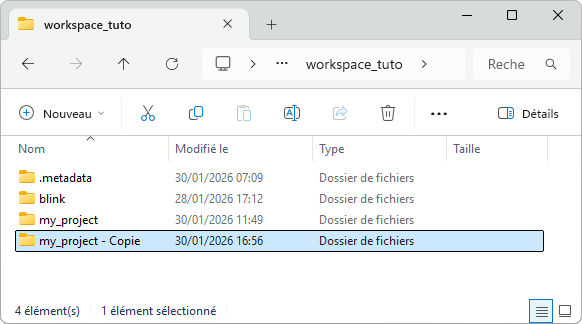
Using your OS explorer, navigate into your workspace folder and copy/paste (create a duplicate) the my_project folder:
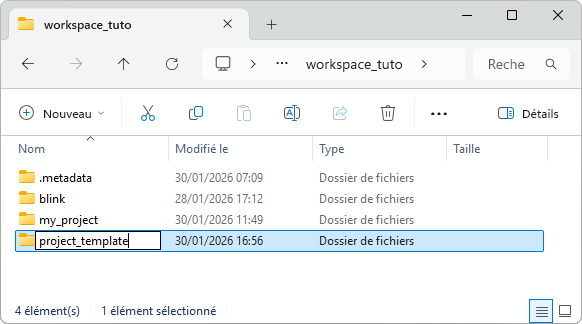
Rename that folder with the new project name project_template:
2. Step #2 : Clean & edit new project configuration files
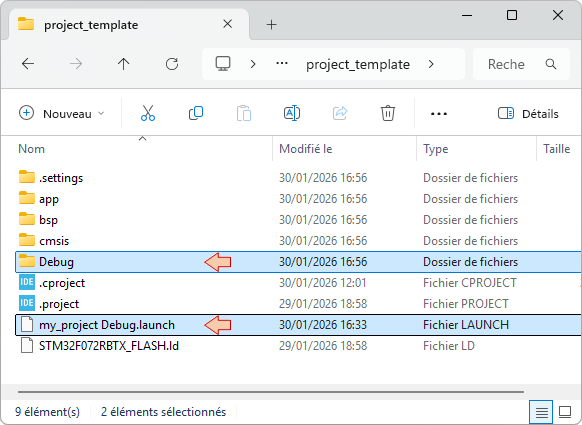
Now open the project_template folder. Delete the Debug folder (these have been produced during build) and the debug/launch configuration file:
Then, open both  and
and  files into a text editor (preferably notepad++).
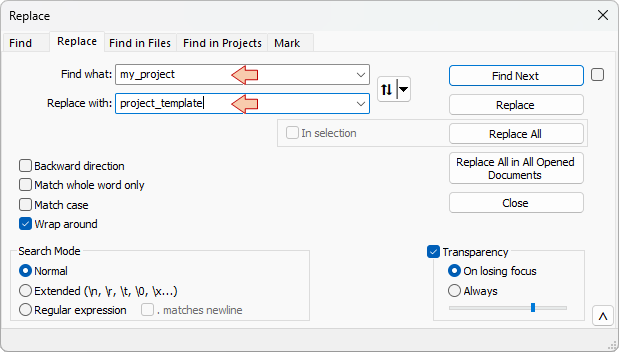
Search and Replace every occurrence of the old name my_project with the new name project_template.
- In the .project file, there is usually only one occurrence within the <name> tag:
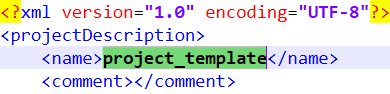
- In the .cproject file, there are several occurrences. In this example, 4 replacements were performed, but you may have more…

...

...

Save and close both .project and .cproject files. The new project is ready for import within STM32CubeIDE.
3. Step #3 : Import an existing project into STM32CubeIDE
Start STM32CubeIDE within the working workspace and close any opened project.
From the IDE main menu File →STM32 Project Create/Import
Choose STM32CubeMX/STM32CubeIDE Project from the Import STM32 Project folder and click Next
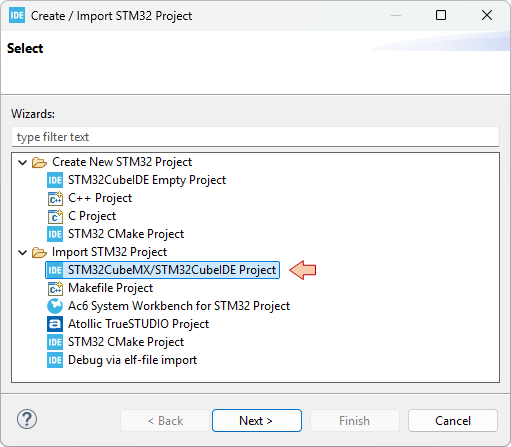
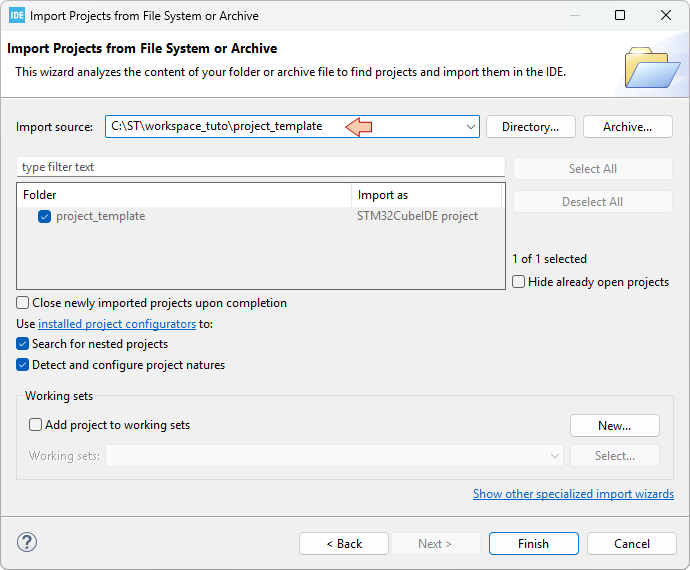
In the next dialog:
- Put the path (root directory) the to project you want to import in the Import source field.
- Tick the project you want to import
- Click Finish
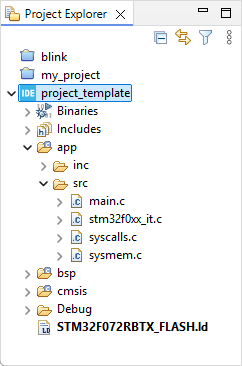
The new project project_template is now displayed in the Eclipse Project Explorer:
You should be able to build it  without problem since all the build options you have set in the source project have been preserved during the cloning operation:
arm-none-eabi-size  project_template.elf
arm-none-eabi-objdump -h -S project_template.elf  > "project_template.list"
   text	   data	    bss	    dec	    hex	filename
   1628	      4	   1564	   3196	    c7c	project_template.elf
Finished building: default.size.stdout
Finished building: project_template.list
17:42:11 Build Finished. 0 errors, 0 warnings. (took 438ms)
The  Debug Configuration is empty as we did not keep the previous file settings. You'll need to do that by yourself. You did it before. Twice...