
1.4. Project template (2026)
In this tutorial, let us create from scratch a minimal project that include everything we actually need to start programming STM32 devices. It is based on the initial blink demo project, but we will bring some additional headers and functions in, that makes the coding a bit more explicit.
With minor adaptations, you may consider this tutorial as a reference for starting new projects with any STM32 devices.
1. Create a New Project
Using the Project Explorer, close any projects that have been left open.
The first steps are the same as for the 1.2. Hello World tutorial. You can repeat the operations of section #1 "Creating a new project" without any changes, except the name you provide for the project. Let's replace "blink" by "my_project".
When done, give a try building  the project to make sure everything is in place so far.
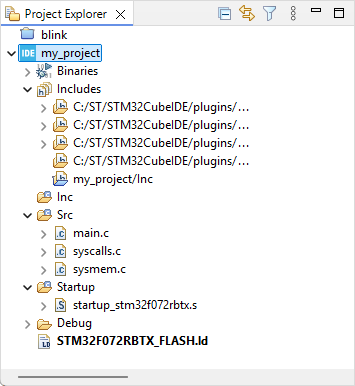
You should end up with this project structure:
2. Edit the project structure (folders)
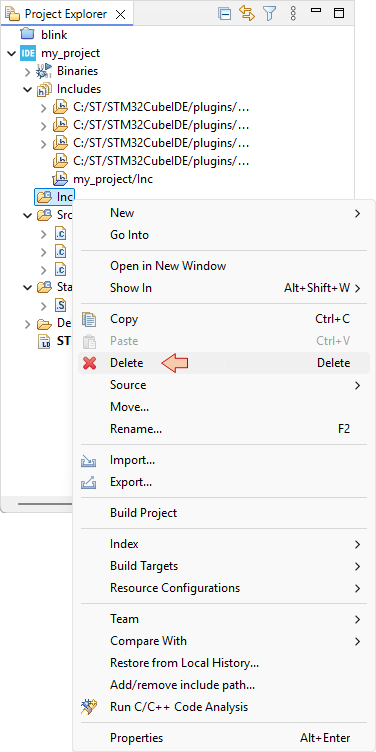
Using the contextual (right-click) menu, delete the /Inc folder.
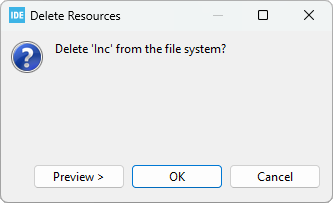
And confirm you want to remove it from the filesystem (hard drive):
Do not worry for now if the include path  generates a warning. Obviously, that path doesn't exist anymore. We'll fix that later.
Then, still using the contextual menu (right-click) within the Project Explorer and selecting:
- New →

- New →

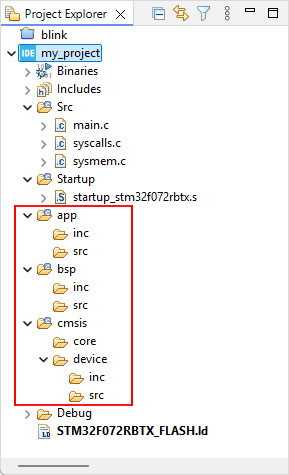
create the following folder structure:
 |
|
Now, within the project explorer:
Drag-n-drop (move) the 3 source files (main.c, syscalls.c, sysmem.c) from the /Src folder, to the /app/src folder
Delete the /Src folder
Drag-n-drop (move) the startup_stm32f072rbtx.s file from the /Startup folder, to the /cmsis/device/src folder
Delete the /Startup folder
The resulting project files and folder structure now is:
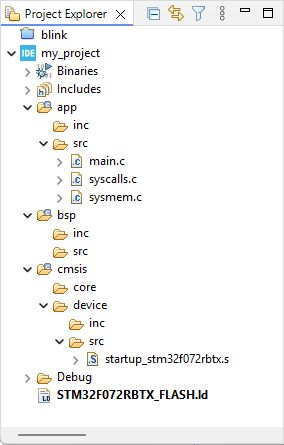
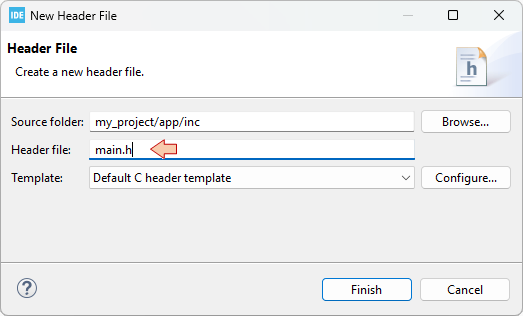
Finally, using again the contextual menu with New→ , add a new header main.h to the /app/inc folder. Select the Default C header template and click Finish.
Note that this folder structure is only a suggestion. If you know what you are doing, you can organize files the way you want and even put everything below root folder, although not recommended…
As your project grows, the number of source files can become really big. You need a clean file structure that you know and understand well to navigate comfortably between sources. The sooner you get familiar with your choice of folder structure, the better. Even for small projects.
3. Get the CMSIS files
A STM32 microcontroller, just like many others MCUs from several silicon vendors, is designed around an ARM Cortex-M core processor. All ARM-based microcontrollers come with a set of source files as defined by ARM under the Cortex Microcontroller Software Interface Standard (CMSIS) specification.

https://developer.arm.com/tools-and-software/embedded/cmsis
Practically, it is only few files you have to include in your project structure. These files are illustrated below :
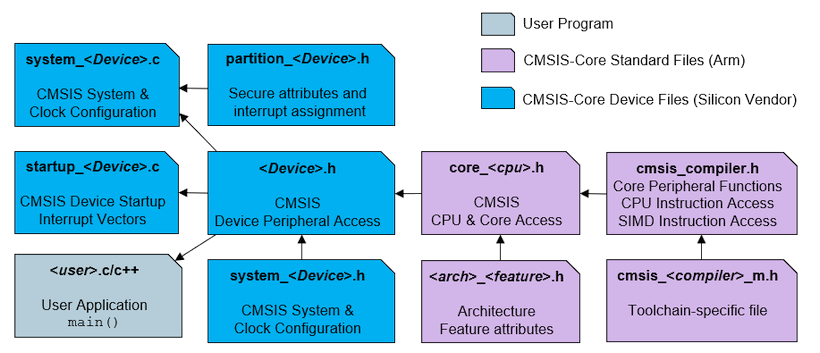
Note that we already have the startup file.
In order to get up-to-date CMSIS source files, a good option is to download the latest release of STM32 Cube libraries for the targeted device familly (STM32F0 here). It comes as a pretty big package including HAL libraries, but do not worry, we will only pick-up few files from this package.
You can get the STM32F0 Cube library from ST website : https://www.st.com/en/embedded-software/stm32cubef0.html (Version 1.11.0 at time of writing).
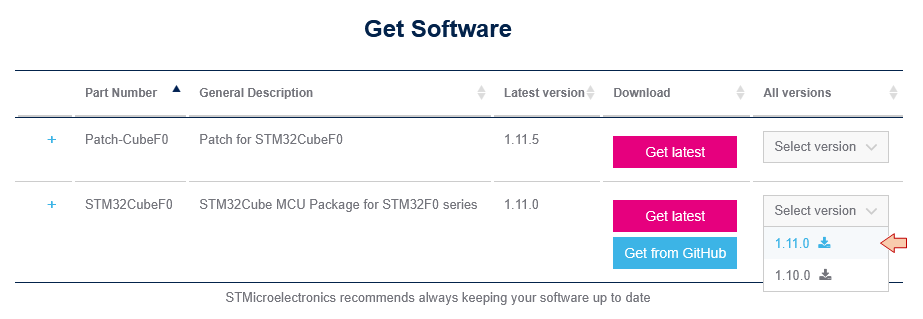
Unzip the downloaded archive and open the folder:
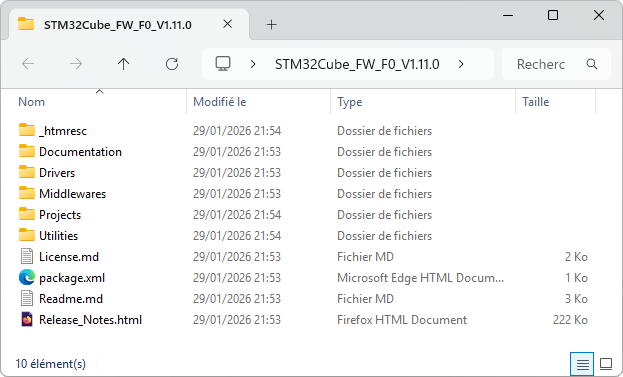
In another window, open your project folder (located in your workspace folder):
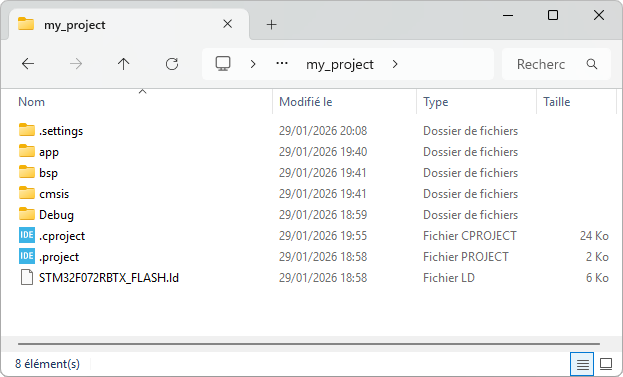
Then copy/paste the following files, from the Cube library, into your project folders:
| File(s) | Source folder | Destination folder |
| *.h | \Drivers\CMSIS\Include\ | \cmsis\core\ |
| system_stm32f0xx.h | \Drivers\CMSIS\Device\ST\STM32F0xx\Include | \cmsis\device\inc |
| system_stm32f0xx.c | \Drivers\CMSIS\Device\ST\STM32F0xx\ Source\Templates | \cmsis\device\src |
| stm32f0xx.h, stm32f072xb.h | \Drivers\CMSIS\Device\ST\STM32F0xx\Include | \cmsis\device\inc |
| stm32f0xx_it.h | \Projects\STM32F072RB-Nucleo\Templates\Inc | \app\inc |
| stm32f0xx_it.c | \Projects\STM32F072RB-Nucleo\Templates\Src | \app\src |
If you are working with a device other than the STM32F072RB, just adapt the previous table to your needs… All ST's Cube libraries share the same file structure and naming convention.
Back into Eclipse, Refresh the Project Explorer (press F5). Your project structure now should be:
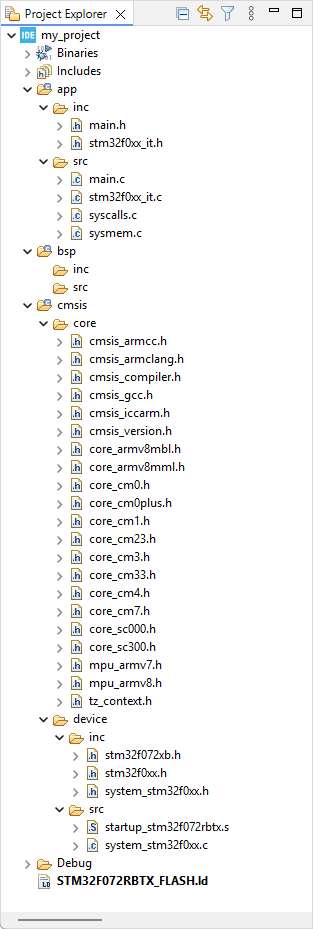
Some more explanations about files we've just added to the project:
The core headers are required to access dedicated CPU functionalities, which are not part of ST hardware. For instance, we use core CPU functions to configure the system timer (Systick), the Nested Vector Interrupt Controller (NVIC), and Low-Power modes.
STM32F0 headers (stm32f0xx.h, stm32f072xb.h) contain definitions (aliases) for all STM32 peripheral registers and their content. It is not a library, it is basically nothing more than a huge (≈10.000) list of #define. It allows calling a register and associated bit by names instead of addresses. For example, the code below we used to toggle the LED state (pin PA5) in previous labs:
*(int *)0x48000014 ^= 0x00000020U;can now be written:
GPIOA->ODR ^= GPIO_ODR_5;which is exactly same code, as there are just a #define behind GPIOA, ODR, GPIO_ODR_5 labels. Still, it makes code writing and reading way more comfortable. When hovering the mouse over a defined symbol, you get a bubble info that provides the definition:
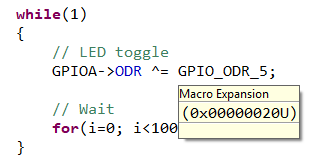
These headers also include data types based on <stdint.h> that we will use instead of standard C types for integer numbers:
| C types | Embedded types |
| char | int8_t |
| unsigned char | uint8_t |
| short | int16_t |
| unsigned short | uint16_t |
| int | int32_t |
| unsigned int | uint32_t |
system_stm32.c and system_stm32.h provide few functions and macros you may want to use. In particular, the default clock settings are defined here and called from the startup routine.
stm32f0xx_it.c and stm32f0xx_it.h are there to implement interrupt handlers. This topic is addressed later.
4. Setting project build properties
At this moment, if you try the build button, it won't work. We need to configure the build first.
Right-click on the project folder and select  → Properties
Select the C/C++ Build→Settings
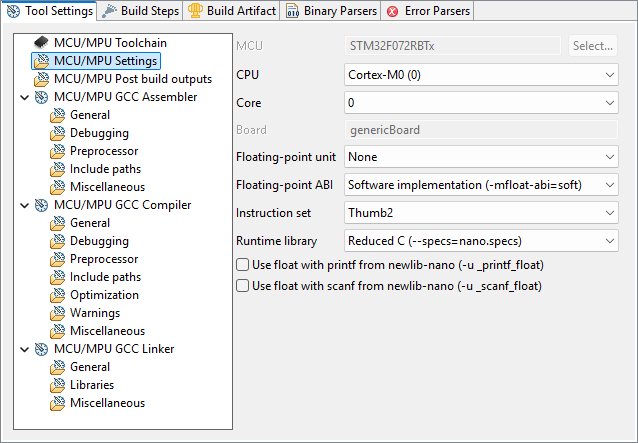
In the MCU/MPU Settings section, review the MCU fields for your target device (just as we did in the "Hello World" tutorial):
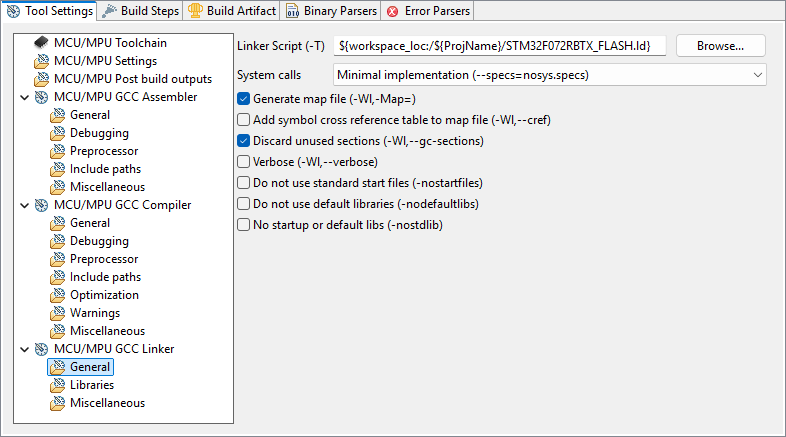
In the MCU/MPU GCC Linker, General section, review the path to your Linker Script (just as we did in the "Hello World" tutorial):
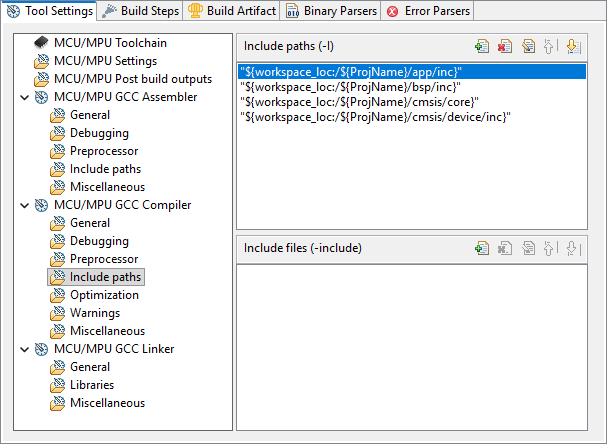
In the MCU/MPU GCC Compiler, Include paths section, you must provide paths to all the header files (.h) in your project. In our example, we have (or will have) headers in:
- /app/inc
- /bsp/inc
- /cmsis/core
- /cmsis/device/inc
First, use the Delete  button to remove the obsolete path to ..\Inc folder
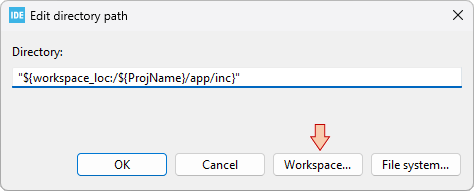
Then use the Add  button and then browse the Workspace to select folders. Doing so avoids mistakes and write portable paths.
Make sure all 4 paths are defined as follows:
When you're done, click the Apply & Close button of the Properties dialog.
Try the build button and watch the console. You should get several errors. Scroll up to the first one:
C:/STM/workspace_tuto/blink3/cmsis/device/inc/stm32f0xx.h:159:3: error: #error "Please select first the target STM32F0xx device used in your application (in stm32f0xx.h file)"
  159 |  #error "Please select first the target STM32F0xx device used in your application (in stm32f0xx.h file)"
      |   ^~~~~
This error is reported from within the stm32f0xx.h header:
#else
 #error "Please select first the target STM32F0xx device used in your application (in stm32f0xx.h file)"
#endif
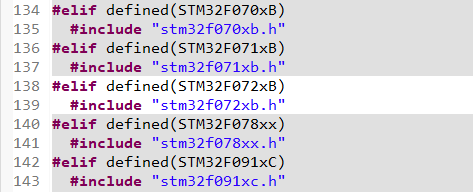
You'll notice that device headers #include above that line are actually all grayed-out, meaning that no header is in fact included. The reason is that you must select which particular device you want to target in this project.
There are 2 ways to to that:
By editing the stm32f0xx.h header. You can either:
Add this
#define STM32F072xBAt the beginning of the header
Or simply un-comment the following line:
/* #define STM32F072xB */ /*!< STM32F072x8, STM32F072xB Devices (STM32F072xx microcontrollers where the Flash memory ranges between 64 and 128 Kbytes) */
By adding a preprocessor symbol in the build configuration. I definitely recommend this method because it leaves ST headers clean from any modification so that you can reuse those in another project without troubles.
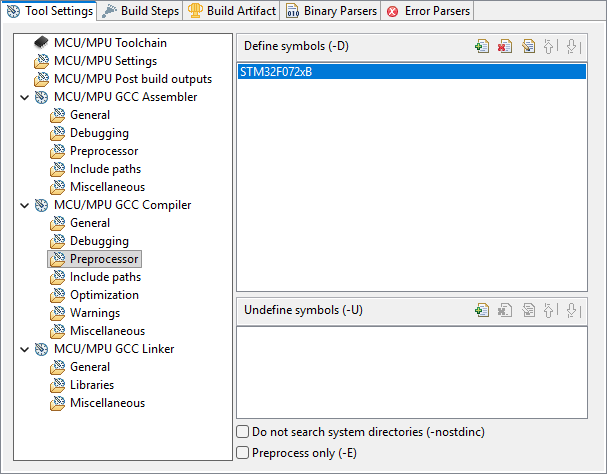
Go back to project properties, under C/C++ Build→Settings, and open the MCU/MPU GCC Compiler, Preprocessor section. In the Define symbols area, start by removing all of the previously defined symbols.
Then click the Add button and edit the symbol you want to add:
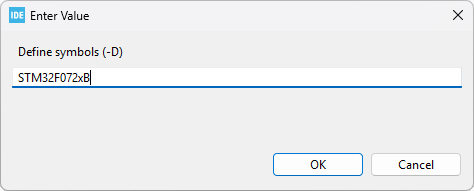
Make sure the symbol has been added, and then Apply & Close the Properties dialog.
You can notice immediate effect in the stm32f0xx.h header. The stm32f072xb.h header is no more grayed-out!
We're almost done... One last thing to do is to edit the stm32f0xx_it.c file. Comment out the call to HAL_IncTick() int the SysTick_Handler() function. We're not using HAL libraries.
/**
  * @brief  This function handles SysTick Handler.
  * @param  None
  * @retval None
  */
void SysTick_Handler(void)
{
  // HAL_IncTick();           // <- Comment this line
}
Well done. Save all  .
.
5. New blinking demo
Delete all the content of the main.c file (CRTL+A, Suppr) and replace it with this one:
/*
 * main.c
 *
 *  Created on: 15 mai 2021
 *      Author: Laurent
 */

#include "stm32f0xx.h"

int main()
{
	uint32_t i;

	// Start GPIOA clock
	RCC->AHBENR |= RCC_AHBENR_GPIOAEN;

	// Configure PA5 as output
	GPIOA->MODER &= ~GPIO_MODER_MODER5_Msk;
	GPIOA->MODER |= (0x01 <<GPIO_MODER_MODER5_Pos);

	while(1)
	{
		// LED toggle
		GPIOA->ODR ^= GPIO_ODR_5;

		// Wait
		for(i=0; i<100000; i++);
	}
}
6. Build and debug
Hit the build button and perform the usual checks:
watch the Console. The build should pass without any warning or error:
arm-none-eabi-size  my_project.elf
arm-none-eabi-objdump -h -S my_project.elf  > "my_project.list"
   text	   data	    bss	    dec	    hex	filename
    612	      0	   1568	   2180	    884	my_project.elf
Finished building: default.size.stdout
Finished building: my_project.list
11:35:31 Build Finished. 0 errors, 0 warnings. (took 3s.292ms)
Have a look on the Build Analyzer and check memory levels:
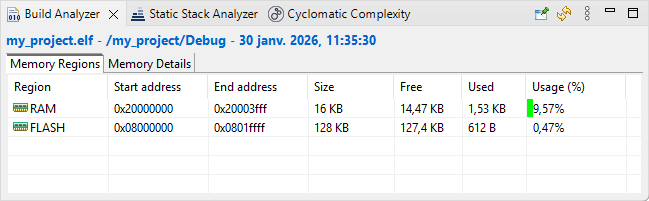
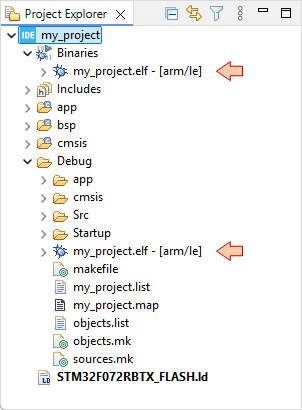
Make sure binaries and debug data has been updated in the Project Explorer:
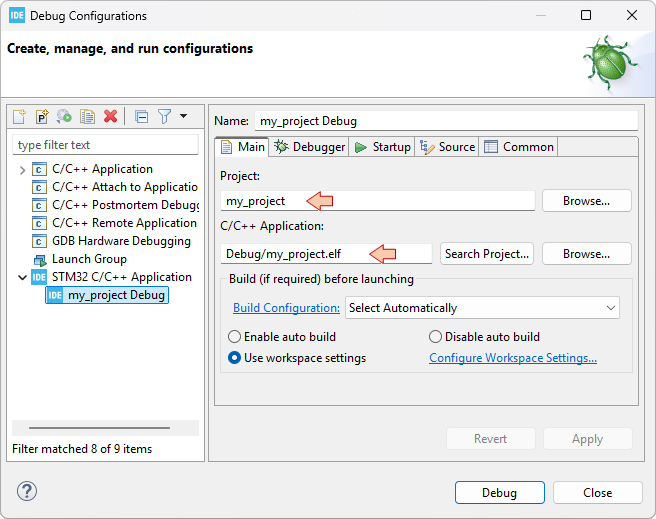
Then, move on to the Debug Configuration  . You did already, just setup the debug configuration:
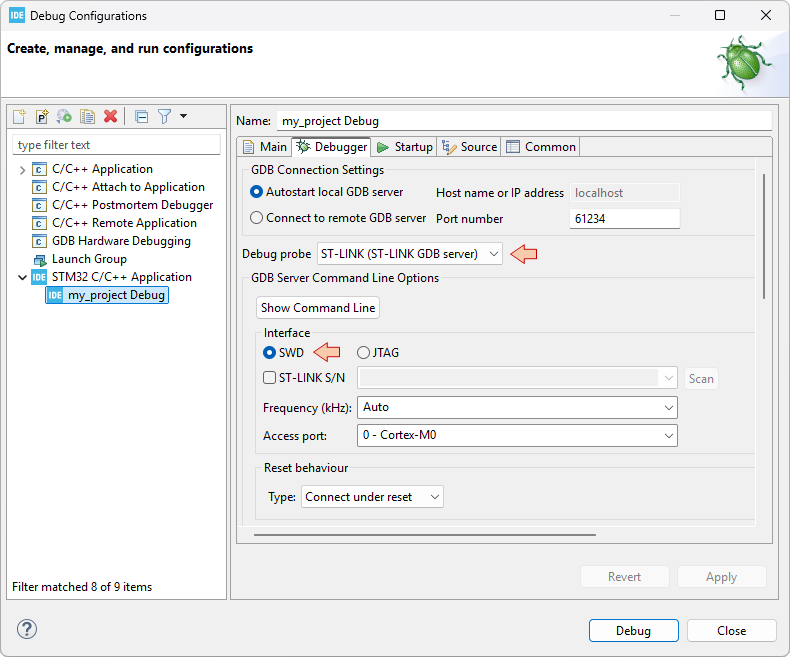
And then make sure that the debugger session launches with no problems:
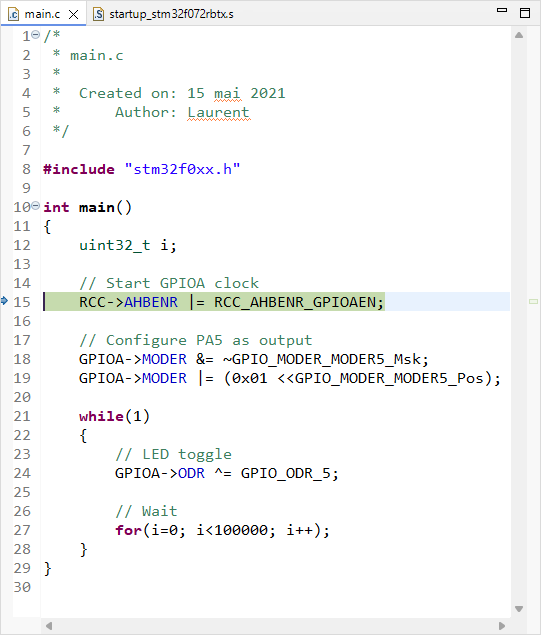
Finally try running the program with the usual debugger commands ( ,
,  ,
,  ), make sure the LED is still blinking...

... then exit the debug session  . Well done!
7. Summary
In this tutorial, we've seen an approach to start new STM32 projects from scratch, using STM32CubeIDE. Such approach should be portable across other IDEs if you like.
The so-prepared project features:
- Full CMSIS layer including:
- Startup code
- System initialization functions
- Device headers enabling the use of embedded types and peripheral aliases (instead of magic numbers)
- The LinkerScript